
Website speed matters more than ever. Slow load times can drive users away, hurt your search rankings, and cost you sales. Did you know 40% of users leave a site that takes more than 3 seconds to load? Or that a 1-second delay can reduce conversions by 7%? This guide breaks down everything you need to know to make your website faster and more user-friendly.
Key Takeaways:
- Why Speed Matters: Faster websites improve user experience, reduce bounce rates, and boost SEO.
- Core Metrics: Focus on Google's Core Web Vitals - LCP (under 2.5s), CLS (below 0.1), and INP (below 200ms).
- Common Issues: Unoptimized images, excessive HTTP requests, slow servers, and bloated code slow your site down.
- Actionable Fixes:
- Compress and resize images (use WebP for better results).
- Minify and merge CSS/JavaScript files.
- Enable caching and use a CDN for faster delivery.
- Optimize server response times with better hosting and reduced database load.
With tools like Google PageSpeed Insights, caching plugins, and AI-driven platforms like Lideroo, you can identify and resolve performance bottlenecks. Fast websites retain users, improve engagement, and drive revenue - don’t let slow speeds hold your site back.
How to improve website performance and optimize page speed
Main Factors That Slow Down Websites
Several key issues can bog down a website's performance: unoptimized images, excess code, and slow server response times. Let’s dive into each of these areas and explore practical ways to address them.
Image Optimization
Images are often the heaviest elements on a webpage, making up around 38% of a page's total weight on average [3]. In some cases, they can account for as much as 75% of a page's weight [4], making them a major culprit behind sluggish load times.
Switching to modern image formats can make a big difference. For example, WebP images are 26% smaller than PNGs and 25-34% smaller than JPEGs, all while maintaining similar quality [5]. The newer AVIF format offers even better compression, but support across browsers is still catching up.
Here’s a quick guide to choosing the right image format for your needs:
| Format | Best Use Case | Key Benefits | Considerations |
|---|---|---|---|
| JPEG | Photos, product images | Smaller file size, widely supported | No transparency support |
| PNG | Icons, transparent graphics | Sharp edges, transparency | Larger file size compared to JPEG |
| WebP | Mixed content, illustrations | Great compression, supports transparency | Limited support in older browsers |
| SVG | Logos, UI elements | Scalable, editable | Not suitable for complex images like photos |
Another common mistake is using oversized images. If a 2,000px-wide image is displayed as 400px on a webpage, the unnecessary size wastes bandwidth and slows loading. Resizing images to match their display dimensions is an easy fix.
For image-heavy pages, lazy loading can be a game-changer. This technique delays the loading of images that aren’t immediately visible, speeding up the initial load time [3]. It’s particularly effective for pages like galleries or product catalogs.
File Minification and Merging
Excess code can make a website sluggish. Unminified files, which include unnecessary spaces, comments, and redundant code, add bloat [2]. Minification eliminates this extra weight, cutting file sizes by 20-40%.
Another effective strategy is combining CSS and JavaScript files. Each file triggers an HTTP request, and browsers can only handle a limited number of simultaneous connections. Fewer files mean fewer requests, which speeds up the loading process - especially on slower networks.
Here’s how minification and merging improve performance:
- CSS files: Removes unused rules, shortens property names, and eliminates unnecessary spaces.
- JavaScript files: Strips comments, shortens variable names, and optimizes syntax.
- HTML files: Cleans up extra spaces and line breaks between elements.
For even better results, you can inline critical CSS and defer non-critical CSS. This ensures that the most important styles load first, so users can see the main content right away while the rest loads in the background [1].
Another overlooked issue is outdated or unused code from old plugins and themes, which can clutter your site. Cleaning this up can lead to noticeable speed improvements.
Server Response Time
Even with optimized content and code, server performance is crucial to website speed. One key metric is Time to First Byte (TTFB), which measures how quickly a server responds to a browser’s request. Google recommends keeping TTFB under 200 milliseconds [7], but many websites exceed this threshold.
The type of hosting you choose has a big impact on server response times. Here’s a quick comparison:
| Hosting Type | Performance Impact | Typical Use Case |
|---|---|---|
| Dedicated Server | Minimal impact (●) | High-traffic enterprise sites |
| VPS Hosting | Low impact (●●) | Growing businesses |
| Cloud Hosting | Low impact (●●) | Scalable applications |
| Shared Hosting | High impact (●●●●●) | Budget-friendly beginners |
Server location also plays a significant role. For example, if your server is in New York but most of your users are in California, the added distance increases latency. Using a Content Delivery Network (CDN) can solve this by caching your content on servers closer to your users [2].
For dynamic websites, database optimization can yield quick wins. Streamlining queries, indexing properly, and removing unnecessary data fragments can significantly improve response times [8].
Caching is another powerful tool. Browser caching and server-side caching store frequently accessed content, reducing the workload on your server. This is especially useful for sites with mostly static content [2].
Finally, don’t overlook the impact of bot traffic. Excessive bot activity can overwhelm servers and skew performance metrics. Implementing bot management tools can help preserve resources for real users [6].
As SEO expert Matt Diggity puts it:
"Server response time is often overlooked when it comes to improving page speed. It can, however, have a dramatic impact on your organic traffic. Users like fast sites, so Google likes fast sites" [10].
The stakes are high. A 100-millisecond delay in load time can reduce conversions by 7% [9], and a one-second delay could cost an ecommerce site $25,000–$125,000 annually [10]. Clearly, improving server response time isn’t just a technical tweak - it’s a business necessity.
Top Tools for Speed Optimization
When it comes to speeding up your website, having the right tools can make all the difference. The best tools not only pinpoint performance issues but also provide clear steps to resolve them. Let’s dive into some of the most effective options for improving site speed.
PageSpeed Insights and Lighthouse
If you’re serious about diagnosing and fixing speed issues, Google PageSpeed Insights is a must-have. This free tool blends real-world data from actual users with lab-based testing to give you a full picture of your site’s performance. It uses data from the past 28 days to identify bottlenecks and offers a scoring system that’s easy to understand: 90 or above is good, 50-89 means there’s room for improvement, and below 50 is poor [16].
One standout feature is the "Opportunities and Diagnostics" section, which provides actionable advice, like compressing images or removing render-blocking resources.
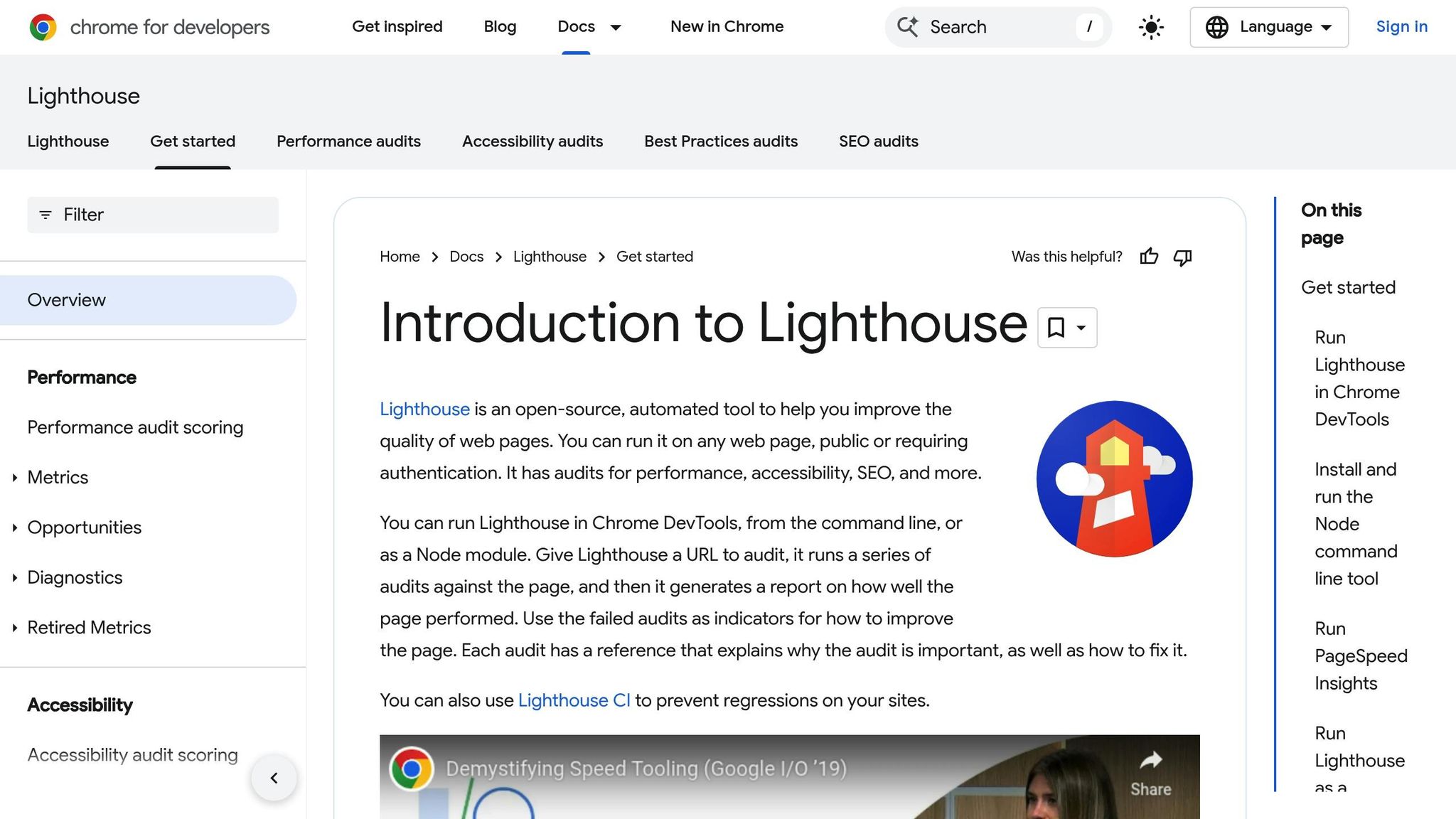
Lighthouse, another tool from Google, takes a slightly different approach. It’s an open-source auditing tool that evaluates 13 metrics, including performance, accessibility, and SEO, using controlled lab data [15]. You can access Lighthouse directly through Chrome DevTools or as a browser extension.
Here’s the key difference: PageSpeed Insights reflects how real users experience your site, while Lighthouse offers controlled testing for consistent results. Using both tools together gives you a complete view of your site’s performance.
A smart strategy? Start by optimizing your most-visited pages. As CertiPro reminds us, "Website performance is more than just fast load times. It's a core component of user experience, SEO success, and conversion rate optimization" [13].
CDNs and Caching Plugins
Content Delivery Networks (CDNs), like Cloudflare, are another powerful way to speed up your site. By serving content from servers located closer to users, CDNs cut down on the time it takes for data to travel. For example, if your server is in New York but most visitors are in California, that added distance can slow things down. CDNs solve this by caching your static content across multiple global servers.
Cloudflare doesn’t stop there. It also offers features like DDoS protection, a Web Application Firewall (WAF), and fraud prevention, improving both speed and security.
Caching plugins take a different approach. These tools reduce the strain on your server by storing static versions of your site, so it doesn’t have to regenerate the same content repeatedly. They’re especially useful for websites with a lot of static content.
For WordPress users, caching plugins can be a game-changer. They handle tasks like browser caching and database optimization, often with minimal setup. The trick is picking a plugin that matches your technical skills and the complexity of your site.
But what about modern solutions? That’s where AI-powered platforms come in.
AI-Powered Platforms like Lideroo

The rise of AI has brought a new wave of tools that simplify speed optimization. Lideroo is a prime example. As a no-code website builder, Lideroo automates many speed-related tasks during the site creation process, eliminating the need for manual fixes later on.
Lideroo’s platform handles essential tasks like generating meta tags, creating XML sitemaps, and implementing schema markup - steps that directly improve both speed and search engine rankings. Its AI-driven content generation ensures that pages are optimized from the start, rather than requiring adjustments after they’re built.
What sets AI-powered platforms apart is their proactive approach. Instead of waiting for issues to arise, they prevent common speed problems during the website-building process. This integrated method ensures a smoother, faster experience for users.
As Harry Abram from Nostra AI aptly puts it, "If your website isn't optimized, you're leaving money on the table" [11]. And the numbers back this up: a 1-second delay in load time can slash conversions by up to 20%, while 40% of users abandon pages that take more than three seconds to load [13][14].
AI-powered tools like Lideroo represent a shift toward smarter, automated website management, embedding optimization into every step of the process. By embracing these tools, you can ensure your site is not only fast but also built for success from the ground up.
sbb-itb-dfa823a
Step-by-Step Speed Optimization Methods
Here’s how you can take immediate action to improve your website’s speed. These hands-on methods work perfectly alongside automated tools for a faster, smoother user experience.
Optimize Images and Media
Images often account for a large chunk of a webpage's size, making them a great place to start when speeding up your site. The goal? Strike the right balance between image quality and file size.
Choose the right file format for each image. JPEG is ideal for photographs and detailed images with lots of colors, while PNG is better for graphics requiring transparency or sharp text overlays. If you’re running a modern website, consider WebP - it delivers high-quality visuals at roughly 30% smaller file sizes compared to JPEG[17]. Looking for even better compression? The AVIF format, supported by WordPress since version 6.5 in 2024, is an excellent option[19].
Resize images to match the exact dimensions they’ll display on your site. Then, compress them using tools like TinyPNG or Squoosh[17]. For graphics where clarity is key, stick with lossless compression. For photos, lossy compression works well if you’re okay with a slight dip in quality.
To make things even faster, enable lazy loading so images outside the user’s immediate view are only loaded as needed. Don’t forget to use descriptive filenames (e.g., "red-leather-boots.jpg" instead of "IMG_1234.jpg") and meaningful alt text. This not only helps with accessibility but also boosts your SEO[17]. Fun fact: 70% of consumers say slow page speeds influence their decision to buy[20].
Once your images are optimized, you can achieve even greater speed improvements by focusing on caching.
Set Up Browser and Server Caching
Caching is one of the most effective ways to reduce load times. Both browser and server caching play a role here.
Browser caching stores assets like images, stylesheets, and JavaScript files on a visitor’s device. This way, returning users don’t have to re-download them. Configure Cache-Control headers to set expiration times for these assets. For instance, static files like logos or CSS can have a longer cache duration (e.g., 30 days), while frequently updated content might need shorter durations (e.g., 1 day).
On the server side, server caching saves pre-generated versions of your site’s pages, reducing the workload for your server. Tools like WP Rocket handle this seamlessly. In fact, WP Rocket automatically applies about 80% of performance best practices upon activation, including caching and GZIP compression[21]. However, be sure to exclude dynamic pages - think shopping carts or checkout pages - from caching to ensure real-time data stays accurate.
With caching in place, the next step is to tackle external scripts that can bog down your site.
Reduce Third-Party Scripts
Third-party scripts - like analytics tools, social media widgets, chat plugins, or ad codes - can add valuable functionality but often come at the cost of slower load times. Start by identifying which scripts are affecting your site’s performance. Tools like Google PageSpeed Insights or Chrome DevTools can help pinpoint the culprits. For example, Entrepreneur.com found that an ad widget from adsafeprotected.com was significantly slowing down their server[23].
Once identified, remove any scripts you no longer need. For the ones you keep, add async or defer attributes to ensure they load without blocking your main content. You can also lazy load non-critical scripts, such as social media widgets, so they only appear when necessary.
If you rely on certain third-party scripts, consider self-hosting them for better control over loading times. Just keep in mind that you’ll need to manually update these scripts as needed. To further speed things up, use <link rel="preconnect"> tags in your page header. This establishes early connections to critical third-party services, shaving 100–500 milliseconds off load times[22].
As NitroPack puts it:
"To lessen the impact of third-party code, first, check if each external script is necessary and remove any that aren't; load scripts without slowing down the main part of your page; use Content Security Policy to control script sources for added security; defer non-essential scripts or use a script loader, and optimize loading times by effectively using browser cache."[22]
Reducing third-party script load times is key, especially since websites that take over 10 seconds to load see a staggering 123% increase in bounce rates[18].
Advanced Strategies for Long-Term Optimization
Once you've tackled basic image and code optimizations, it's time to step up your game. These advanced strategies are designed to keep your site running at peak performance, even as it scales.
Monitor and Optimize Core Web Vitals
Google's Core Web Vitals - LCP (Largest Contentful Paint), FID (First Input Delay), and CLS (Cumulative Layout Shift) - are critical for both user experience and search rankings.
- LCP: This measures how quickly the largest visible content on your page loads. Aim for under 2.5 seconds. To improve, focus on faster hosting, compressing large images, and removing render-blocking resources.
- FID: This gauges how responsive your site feels when users interact with it. Keep this under 100 milliseconds. You can achieve this by breaking up long JavaScript tasks, eliminating unused code, and using web workers to handle intensive computations.
- CLS: This tracks how stable your page layout is while loading. A good score is under 0.1. Prevent layout shifts by reserving space for images and ads, avoiding content insertion above existing elements, and using CSS transforms instead of directly altering element properties.
To stay on top of these metrics, use tools like Google Search Console and PageSpeed Insights for automated tracking. Set up alerts to notify you if scores drop below your targets, so you can address issues before they affect user experience or rankings.
Implement HTTP/2 or HTTP/3
Updating your web protocol can significantly enhance how data moves between your server and your users' browsers, leading to faster load times and better overall performance.
- HTTP/2: This protocol allows multiple requests to run simultaneously over a single connection, avoiding the bottlenecks of HTTP/1.1. It also compresses headers and supports server push, which lets your server send resources before the browser requests them.
- HTTP/3: Building on HTTP/2, this protocol uses the QUIC protocol over UDP instead of TCP. The result? Faster connections and no head-of-line blocking. HTTP/3 is especially effective in poor network conditions, improving load times by up to 55% on mobile networks with around 15% packet loss. It also supports 0-RTT, which can reduce Time To First Byte (TTFB) by 12.4%.
| Feature | HTTP/2 | HTTP/3 |
|---|---|---|
| Transport Protocol | TCP | QUIC (built on UDP) |
| Connection Setup | Slower | Up to 33% faster |
| Performance in Poor Networks | Lower | 55% better with ~15% packet loss |
| Head-of-Line Blocking | Present | Eliminated |
| Security | TLS 1.2 or earlier | TLS 1.3 mandatory |
Most hosting providers already support HTTP/2, and enabling HTTP/3 can take your site's performance to the next level.
"HTTP/3 itself is really quite a small change from HTTP/2. QUIC is where the excitement is"[24].
Use AI for Automated Optimization
AI tools are changing the game when it comes to website optimization. These platforms handle the heavy lifting, ensuring your site runs smoothly without constant manual intervention.
For example, Lideroo's AI system can automatically manage technical performance tasks like image compression, code minification, and caching. It also generates SEO-friendly meta tags, creates XML sitemaps, and implements schema markup. Plus, it provides built-in SEO recommendations to boost your rankings while maintaining top-notch performance.
AI works best when paired with regular monitoring. Establish performance baselines, then let the AI handle updates and adjustments as your site evolves. This ensures your site stays fast and efficient, even as web standards shift and traffic increases.
Conclusion and Key Takeaways
Optimizing website speed isn’t just about ticking off a technical requirement - it’s a critical factor for business success. If your site takes more than 3 seconds to load, users are likely to lose interest [26]. And with Google prioritizing sites that load in under 2.5 seconds [25], speed directly impacts both user experience and search rankings.
Summary of Optimization Methods
To begin, focus on image optimization. Compress your images and switch to modern formats like WebP to reduce page weight significantly. Address render-blocking resources by deferring JavaScript files and inlining critical CSS. Enabling browser caching is another straightforward way to improve performance by storing static content locally.
For sustained success, prioritize Core Web Vitals. Aim for these benchmarks:
- Largest Contentful Paint (LCP): Under 2.5 seconds
- First Input Delay (FID): Less than 100 milliseconds
- Cumulative Layout Shift (CLS): Below 0.1
These metrics are essential for both user satisfaction and search engine visibility. Additionally, advanced techniques like adopting HTTP/2 or HTTP/3 protocols can further enhance your site's performance. As Brendan Kenny from Google highlights:
"The majority of origins with poor LCP spend less than 10% of their p75 LCP time downloading the LCP image" [27].
By implementing these strategies, you can create a strong foundation for website speed optimization.
Next Steps for Beginners and Advanced Users
Once you’ve tackled the basics, consider the next steps tailored to your level of expertise:
Beginners: Start simple. Compress images, enable browser caching, and invest in quality hosting. Use tools like Google PageSpeed Insights to identify bottlenecks and address them one at a time.
Advanced Users: Dive into automated and AI-driven solutions. AI tools can streamline optimization processes and deliver measurable results. For instance, AI-driven content optimization has been shown to boost organic traffic by 34% within three months [28]. With AI adoption projected to grow at a compound annual rate of 37.3% from 2023 to 2030 [12], this approach is shaping the future of web optimization.
As SEO expert Aleyda Solis notes:
"AI empowers SEO teams to work more strategically and creatively by automating the repetitive." [28]
How Lideroo Can Help
If managing these optimizations feels overwhelming, Lideroo simplifies the process. This AI-powered, no-code platform automates key tasks like image compression, code minification, and caching. It even generates SEO-friendly meta tags and XML sitemaps.
Lideroo’s system continuously monitors your site’s performance, ensuring it stays fast as your content grows. With built-in SEO recommendations and automated technical fixes, you’ll achieve enterprise-level results without the complexity.
Whether you’re launching your first website or juggling multiple ones, Lideroo lets you focus on creating top-notch content while it handles the technical details that keep users engaged and search engines satisfied.
FAQs
How does optimizing my website's images help improve loading speed and user experience?
Optimizing your website's images plays a big role in improving loading times and creating a better experience for your visitors. By compressing image files, choosing the right formats - like JPEG for photos or PNG for graphics - and using responsive images that adjust to different screen sizes, you can cut down the amount of data your site needs to load.
When your site loads faster, visitors can access your content quickly, which boosts engagement and reduces bounce rates. On top of that, faster load times can give your SEO rankings a boost, making it easier for people to discover your site in search results.
What are Core Web Vitals, and how do they impact my website's performance?
Core Web Vitals focus on three important aspects of a webpage: loading speed, interactivity, and visual stability. These are measured through three metrics: Largest Contentful Paint (LCP), which tracks how quickly the largest visible content loads; First Input Delay (FID), which measures responsiveness to user actions; and Cumulative Layout Shift (CLS), which assesses how stable the page layout remains while loading.
Why do these matter? Enhancing your Core Web Vitals not only improves your website’s search rankings but also creates a smoother and more enjoyable experience for your visitors. Since Google uses these metrics in its ranking algorithm, they’re crucial for achieving both SEO goals and keeping users happy.
How can AI-powered platforms like Lideroo help optimize website speed effortlessly?
AI-powered platforms, such as Lideroo, simplify the process of improving website speed by handling tasks like image compression, code minification, and resource loading optimization. These tools take care of the heavy lifting, ensuring your site runs faster and performs better - all without needing advanced technical know-how.
With AI in the mix, Lideroo doesn’t just save you time; it helps your website align with today’s performance standards. The result? A smoother user experience and a boost in SEO rankings, all achieved with minimal effort on your part.