

Cloud storage integration can improve your no-code website by offloading file storage to external servers, ensuring fast performance and scalability. Whether you're managing user uploads, large media files, or downloadable resources, linking a cloud storage service like Google Drive, Dropbox, or Amazon S3 simplifies file management and keeps your site efficient.
Key Benefits:
- Faster Website Performance: Files are stored externally, reducing server load.
- Scalability: Handle growing user uploads or large files with ease.
- Centralized File Management: Organize and manage files in one place.
- Improved User Experience: Quick file delivery via CDNs ensures smooth access.
Quick Setup Overview:
- Choose a Cloud Storage Provider: Options include Google Drive (affordable for small sites), Dropbox (great for media-heavy content), or Amazon S3 (ideal for large-scale needs).
- Link to Your Website: Use your no-code platform's integration tools (e.g., Lideroo) to securely connect your cloud storage account.
- Set Permissions: Define who can upload, view, or download files for added security.
- Test and Optimize: Upload sample files and check for performance or access issues.
For a smooth process, start small, test configurations, and use your storage provider's documentation or support resources for troubleshooting.
Requirements and Choosing a Cloud Storage Provider
What You Need Before Starting
Before diving in, make sure you have admin access to your Lideroo dashboard and an active cloud storage account. Many providers offer free plans, which are great for testing the waters. To estimate your storage needs, think about your site's user volume, average file sizes, and monthly traffic. It's also important to define the types of files you'll allow (like PDFs, images, or videos), set limits on file sizes, and decide if features like automatic compression or virus scanning are necessary.
Your website's purpose will help determine the features you prioritize. For instance, directory sites managing business documents require strong file organization and sharing tools. Media-heavy blogs will need fast content delivery and ample bandwidth, while community platforms benefit from easy-to-use upload tools and solid permission settings.
Once you’ve outlined your requirements, it’s time to compare leading cloud storage providers to find the best match for your site.
Popular Cloud Storage Providers Compared
There are several excellent cloud storage options available, each catering to different needs and budgets. Here's a closer look at three popular choices:
Google Drive
- Free Storage: 15 GB
- Pricing: Starts at $1.99/month for 100 GB and $2.99/month for 200 GB
- Best For: Small to medium-sized websites
- Key Advantage: Seamless integration with Google Workspace tools
Google Drive is an affordable option, especially for smaller sites. It’s particularly useful for directory sites, where business owners might need to update their listings. The interface is intuitive, making it easy for users to manage their uploads.
Dropbox
- Free Storage: 2 GB
- Pricing: $9.99/month for 2 TB
- Best For: Content creators and media-heavy websites
- Key Advantage: Excellent file syncing and sharing
Dropbox stands out for its Smart Sync feature, which saves local storage space while keeping files accessible. Its robust API makes integration with Lideroo simple, and its focus on file sharing makes it a go-to for content creators.
Amazon S3
- Free Storage: None
- Pricing: Pay-per-use (~$1.15/month for 50 GB)
- Best For: High-traffic websites or sites serving large media files
- Key Advantage: Enterprise-level scalability and fast global delivery via CloudFront CDN
Amazon S3 is a powerhouse for performance and scalability. While it requires more technical expertise to set up, it’s perfect for high-traffic sites or those with large media needs, thanks to its pay-as-you-go pricing and fast content delivery.
| Provider | Free Storage | Starting Price | Best For | Key Advantage |
|---|---|---|---|---|
| Google Drive | 15 GB | $1.99/month (100 GB) | Small to medium sites | Easy integration with Google tools |
| Dropbox | 2 GB | $9.99/month (2 TB) | Content creators | Superior file syncing and sharing |
| Amazon S3 | None | Pay-per-use (~$1.15/50 GB) | High-traffic sites | Scalability and fast global delivery |
How to Pick the Right Storage Solution
With your requirements in hand, weigh your current needs against your future goals. If you're on a tight budget, Google Drive is a great starting point for smaller directory sites or blogs. For sites dealing with larger files, Amazon S3’s CDN ensures quick loading times, while Dropbox offers excellent organization tools for document-heavy projects.
Consider how much technical setup you're comfortable with. Google Drive is simple to manage and requires minimal configuration. Amazon S3 is incredibly powerful but demands some technical know-how. Dropbox strikes a balance, offering robust features in an easy-to-use platform.
Planning for growth is just as important as meeting current needs. For instance, a local business directory might work well with Google Drive’s 100 GB plan at first. But as the site expands to include video content or regional markets, Amazon S3’s scalable model becomes more appealing. On the other hand, if your site encourages user-generated content, Dropbox’s collaboration tools might be the better choice as your community grows.
Finally, test your chosen provider by uploading small batches of files. This helps you identify any issues early, like slow loading speeds or compatibility problems across devices. Once you’ve confirmed your choice, you can move on to configuring integration settings in Lideroo.
How I Built a No Code App Backend: n8n, Stripe & Google Cloud
Step-by-Step Integration Guide for Lideroo
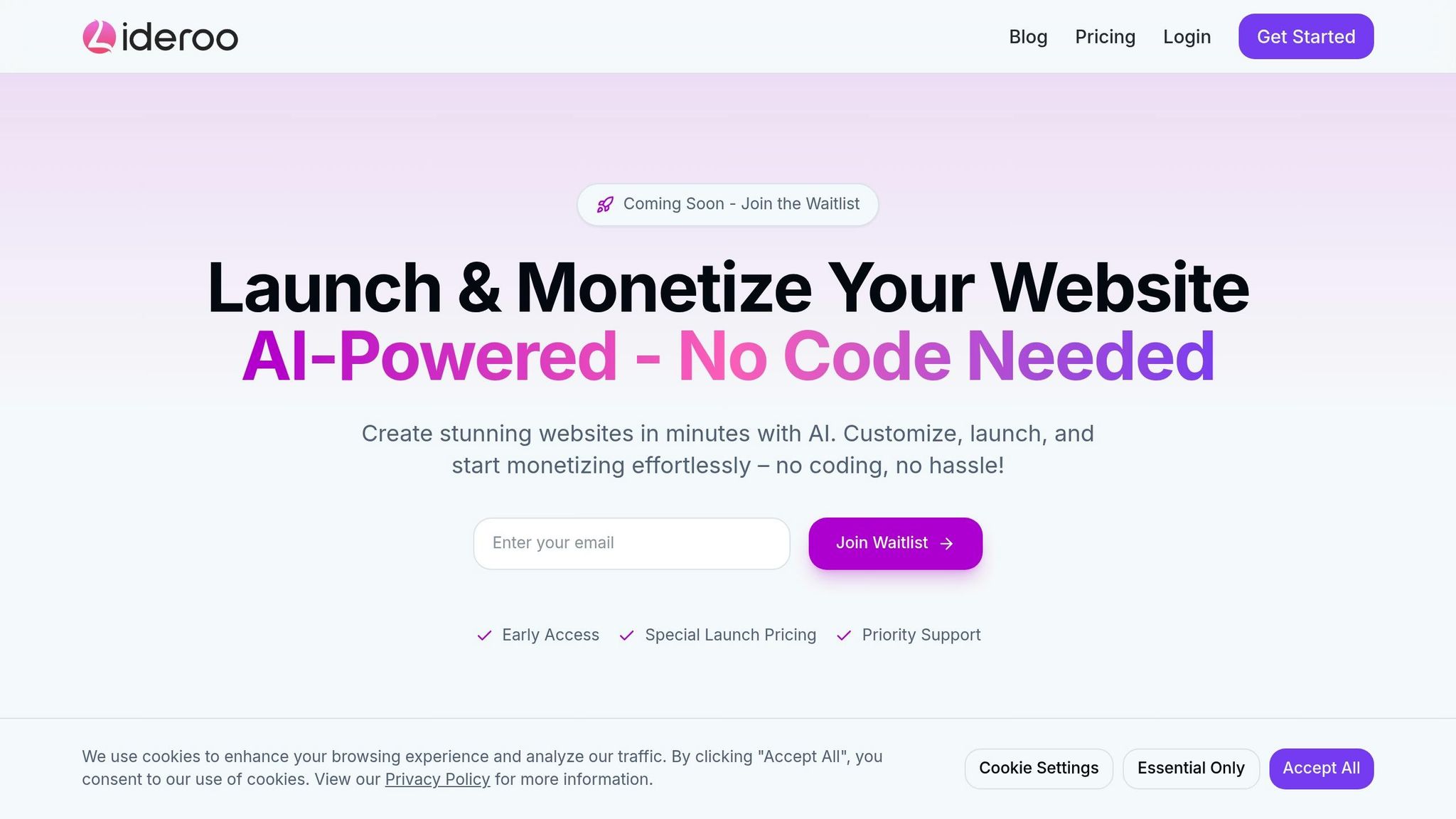
Connecting your cloud storage to your Lideroo site is simple with their no-code platform. Here's how you can integrate and manage your files securely.
Accessing Integration Settings in Lideroo
Start by logging into your Lideroo dashboard. From there, head over to the "Integrations" or "Storage Options" section to find the tools you need for cloud storage integration.
Linking Your Cloud Storage Account
Once you're in the right section, select "Connect Account". Follow the on-screen instructions to securely link your preferred cloud storage provider. The process is straightforward and ensures your account is connected safely.
Configuring File Access and Permissions
After linking your account, it’s time to set up file access and permissions. Lideroo's visual tools make it easy to organize folder structures and assign user permissions based on your needs. To ensure everything works smoothly, test the setup using a sample account. This step helps confirm that access controls are functioning as expected.
If you encounter any issues, Lideroo’s support resources are available to assist you with troubleshooting and additional tips.
File Management and Sharing Best Practices
Now that your integration is set up, it’s time to focus on managing and sharing files efficiently. This step is all about keeping things organized, improving performance, and safeguarding sensitive data.
How to Organize Your Files
Start with clear, descriptive folder names and stick to a consistent naming system. For example, using YYYY-MM-DD for dates and underscores instead of spaces can make files easier to locate. A good example might be "Newsletter_Template_2025-08-30.pdf", rather than something vague like "newsletter template final version 2.pdf."
Pay attention to file sizes to ensure they load quickly. Keep image files under 2 MB and documents under 10 MB whenever possible. This helps maintain a smooth experience for users, even on slower internet connections.
Organize folders based on user roles, such as Public, Members, or Admin. This structure simplifies permission management and minimizes the risk of sharing private files with the wrong audience.
Keeping Files Private and Secure
Protecting sensitive information is a must. Avoid storing customer data, financial records, or personal details in folders that anyone can access. Instead, use Lideroo’s permission settings to restrict access to authorized users only.
Strengthen security by enabling two-factor authentication on your cloud storage account. This adds an extra layer of protection, even if your password is compromised.
Regularly audit file permissions, especially after team changes. Revoke access for former team members right away, and double-check which files are marked as public versus private.
For an added layer of security, encrypt sensitive files before uploading them to the cloud. This ensures that even if someone gains access, the data remains unreadable without the decryption key.
Stay vigilant by reviewing activity logs for unusual behavior. Set up alerts for events like multiple failed login attempts or large file downloads from unfamiliar locations.
Managing File Sharing with Users
Different user roles call for tailored access levels. For example:
- General visitors might only need access to public resources like brochures or product catalogs.
- Premium members could receive exclusive content.
- Administrators require full access to upload, manage, and organize files.
When sharing temporary materials, such as event tickets or time-sensitive offers, set up automatic expiration dates to ensure the content becomes inaccessible after its purpose is served.
Be cautious with upload permissions. Allow only trusted users to upload files, and set restrictions on file types and sizes. For example, block potentially harmful formats like .exe or .bat files, which could carry malware.
Finally, monitor download activity. Track which content gets the most downloads to identify what resonates with your audience. Keep an eye out for unusual behavior, like a single user downloading the same file repeatedly, as this could indicate unauthorized sharing or a technical issue.
sbb-itb-dfa823a
Troubleshooting and Getting Help
Even with your cloud storage integration set up, things don’t always run perfectly. Problems can pop up, but the good news is that most have straightforward fixes.
Common Problems and How to Fix Them
Here’s a rundown of common issues and how to address them:
Connection failures: If your cloud storage account isn’t connecting, double-check your login credentials. If you've recently updated your password, reconnect the account.
Permission errors: Files showing up in your cloud storage but not on your website? This is often due to sharing permissions not being set correctly. Go into your cloud storage settings and make sure the folders you want to display are set to public.
Slow loading times: Large files can drag down loading speeds, which can be frustrating for visitors. To speed things up, compress images and other large files before uploading.
Missing files: If you’ve reorganized folders in your cloud storage, it might break the integration links. Refresh your integration settings to restore them.
Upload restrictions: Some file types, like .exe or .zip files, might not be allowed by your cloud storage provider. Check their upload guidelines to see what’s restricted.
Authentication timeouts: If syncing suddenly stops, it could mean your cloud storage session has expired. Disconnect and reconnect your account to fix this.
If none of these solutions work, don’t worry - there are more ways to get help.
Where to Get Additional Help
When troubleshooting doesn’t solve the problem, Lideroo’s support resources are ready to help.
Head over to Lideroo's Help Center for in-depth tutorials and step-by-step guides on cloud storage integration. You can access it directly from your dashboard by clicking the question mark icon in the top navigation bar. There, you’ll also find video walkthroughs to guide you through settings.
For more personalized support:
- Starter and Agency plan users: Get priority support by submitting a ticket through your dashboard. Responses are typically quick during business hours.
- Free plan users: Join the Lideroo Community Forum to connect with other users and find answers.
Paid subscribers can also access live chat support during regular business hours for real-time assistance.
If you’re on the Agency plan, you have the added benefit of scheduling one-on-one consultations with Lideroo’s technical team to tackle advanced integration challenges.
Lastly, don’t forget to check your cloud storage provider’s documentation. Sometimes, issues stem from their end, especially during updates or maintenance.
Summary and Next Steps
Why Cloud Storage Matters for Your Lideroo Website
Integrating cloud storage into your Lideroo website simplifies how you manage and share files. Whether you're showcasing downloadable resources, creating image galleries, or offering premium content, cloud storage keeps everything organized and accessible. Plus, with built-in backups and encryption, your data stays safe while your site remains ready to scale as your needs grow. It's a practical solution that makes managing your online presence easier.
Steps to Get Started
Ready to integrate cloud storage? Here's a quick overview to help you begin:
- Evaluate Your Needs: Determine what kind of storage and features best suit your website.
- Choose a Cloud Provider: Pick a service that aligns with your requirements.
- Access Integration Settings: Log in to your Lideroo dashboard and navigate to the integration settings.
- Connect and Configure: Link your cloud storage account and adjust file access permissions.
- Start Small: Begin with one folder or file type to test functionality before expanding.
- Test Thoroughly: Check file permissions, loading times, and mobile responsiveness to ensure everything works smoothly.
If you run into any issues or need additional guidance, you can always refer to the official Lideroo documentation or reach out to their support team for help.
FAQs
What should I consider when selecting a cloud storage provider for my no-code website?
When selecting a cloud storage provider for your no-code website, prioritize security, scalability, performance, and reliability. These elements are key to keeping your data safe, ensuring smooth access, and supporting your website's growth over time.
It's also essential to confirm integration compatibility with your no-code platform and verify that the provider adheres to industry compliance standards. Features like file versioning, syncing, and cost management can further enhance your website's functionality while helping you stay within budget.
Taking the time to evaluate these factors will help you choose a cloud storage solution that boosts your website's efficiency and improves the overall user experience.
How can I securely integrate cloud storage with my Lideroo website while protecting user privacy?
How to Securely Integrate Cloud Storage with Your Lideroo Website
When integrating cloud storage with your Lideroo website, protecting user privacy should be a top priority. Start by selecting a storage provider known for offering strong encryption, robust access controls, and adherence to data protection regulations.
Make sure all data is encrypted both at rest and in transit. Use secure encryption algorithms like AES-256 to keep information safe, and ensure web communication happens over HTTPS. For an extra layer of security during data transfers, you might also want to use VPNs.
On top of that, enforce strict access controls. Limit who can view or modify sensitive information to only those who absolutely need it. By following these measures, you’ll not only protect user data but also uphold high privacy standards for your Lideroo-powered site.
What should I do if I face issues like connection failures or permission errors when integrating cloud storage into my no-code website?
If you're running into trouble with cloud storage integration - like connection failures or permission errors - start with the basics. Check that your internet connection is steady, as network hiccups are often the root of these issues. Then, verify your account credentials and permissions. Ensure your account has the right access levels and that API access is turned on.
It's also a good idea to review your API settings. Double-check that you're using the correct configurations and the appropriate API version to sidestep compatibility problems. If the issue doesn’t resolve, try refreshing your integration settings or disconnecting and reconnecting the cloud storage service. Still stuck? Dive into your platform's support documentation or reach out to their support team for expert guidance.